Watching a 45-minute YouTube lecture just to pull out five key points is not a great use of anyone’s time. The video has the information they need, but getting it into a usable format takes too long.
That’s where TubeOnAI comes in. It converts YouTube videos into structured, readable notes within seconds. Just paste a link, and the AI handles the rest.
This guide walks you through the exact steps to turn any YouTube video into clean, organized notes using TubeOnAI. We will also cover how to export those notes as PDF or TXT files so you can use them wherever you need.
Why Convert YouTube Videos to Notes?
YouTube is packed with tutorials, lectures, interviews, and how-to content. But video is a terrible format for quick reference. You can’t scan a video the way you scan a document. You can’t search for a specific line inside a 90-minute recording without scrubbing through the timeline.
Converting videos to notes solves this. You get a text-based version of the content that you can read in minutes, highlight, share, or drop into your study materials. For students preparing for exams, researchers gathering insights, or marketers repurposing video content into blogs and newsletters, having notes from a video saves hours every week.
TubeOnAI uses AI to transcribe the video audio, identify the main topics, and organize everything into a structured summary. It works with videos that have subtitles and even those without any transcript available.
What You Need Before Starting
The setup is simple. You need a free TubeOnAI account, which takes about 30 seconds to create. You can sign up at web.tubeonai.com using your email or Google account. You also need the YouTube video URL you want to convert. The video should be publicly accessible. TubeOnAI works best with videos between 10 minutes and 2 hours long. It also supports videos up to 6 hours long.
You can use TubeOnAI through the web app, the Chrome extension, or the mobile app on iOS and Android.
For this guide, we will use the web app since it gives you the full set of features.
Step-by-Step: How to Generate Notes from YouTube Videos
Here’s the step by step process of generating notes from a YouTube video:
Step 1: Copy the YouTube Video URL
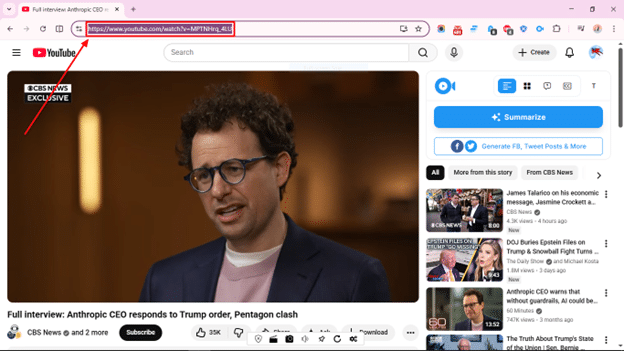
Go to the YouTube video you want to convert. Copy the full URL from your browser’s address bar. It should look something like https://www.youtube.com/watch?v=xxxx. Any public YouTube video will work. This includes lectures, podcasts, interviews, webinars, conference talks, and tutorials.
Step 2: Paste the Link in TubeOnAI
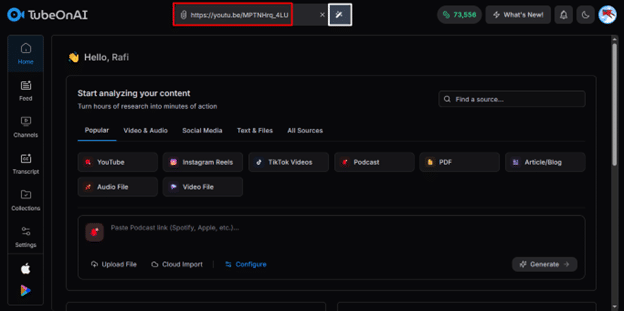
Log in to your TubeOnAI dashboard. You will see an input field in the middle of the screen. Paste your YouTube link there and hit the summarize button. TubeOnAI will start processing the video right away.
If the video has existing subtitles, the tool grabs them instantly. If the video has no transcript, TubeOnAI transcribes the audio using its own AI engine, so you are covered either way.
Step 3: Wait for the AI to Process
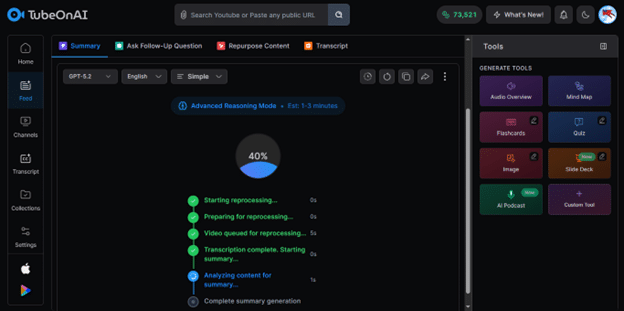
It takes around a couple of seconds to minutes, depending on the video length. The AI analyzes the full audio, pulls out the main ideas, and structures them into sections with clear headings and key takeaways.
Step 4: Review and Edit Your Notes
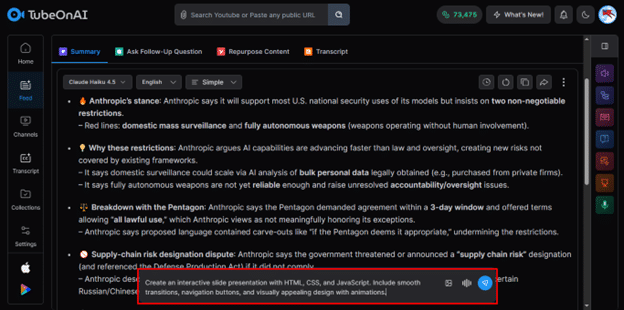
Once the summary is ready, you get a clean, readable set of notes on your screen. These notes include the main points covered in the video, organized by topic. You can read through them, make edits if needed, or use the Ask Follow Ups feature to ask the AI specific questions about the video content.
Step 5: Translate the Notes (Optional)
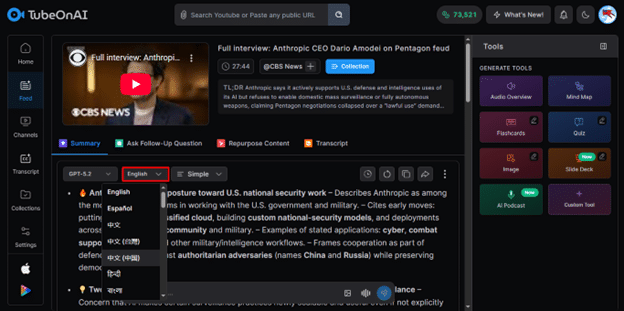
TubeOnAI supports over 40 languages. If the video is in English but you want notes in Spanish, Hindi, Bangla, or any other supported language, just select your preferred language. The tool translates the entire summary while keeping the structure intact.
Step 6: Export Notes as PDF or TXT
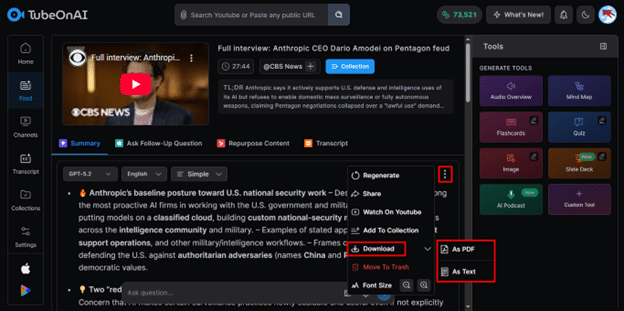
This is where TubeOnAI really shines for anyone who needs their notes outside the platform. Once your summary is generated, you can export it in two formats:
PDF Export: Click the download button and select PDF. You get a professionally formatted document with headings, key points, and clean layout. Perfect for printing, sharing with classmates, or attaching to reports.
TXT Export: If you prefer plain text, choose the TXT option. This gives you a lightweight file that works with any text editor, note-taking app, or document. Great for pasting into Notion, Google Docs, or your own study files.
You can also copy the notes directly to your clipboard with a single click, which is handy for quick sharing.
What Else Can You Do With the Notes?
TubeOnAI is not just a note-taking tool. Once you have the summary, you can repurpose it using the platform’s built-in content repurposing feature.
Turn the same video into a blog post, a LinkedIn thread, a podcast script, or social media captions. The platform includes a prompt library with 150+ ready-made prompts for different content types.
You can also generate interactive content like slides, flashcards, and quizzes from the same video. This makes it a solid tool for educators building course materials or students creating study aids.
TubeOnAI supports 25+ content sources beyond YouTube as well. You can generate notes from podcasts, TikTok videos, Instagram Reels, Twitter/X videos, PDF documents, and uploaded audio or video files. If you regularly work with multiple content formats, everything runs through the same workflow.
Tips for Getting Better Notes
Pick videos with clear audio. Background music or heavy accents can affect the quality of transcription. Videos between 10 minutes and 2 hours work best. Very short clips may not have enough content for a meaningful summary, and extremely long videos may be better split into parts.
Use the follow-up chat to dig deeper into specific sections. Instead of reading the full summary, you can ask pointed questions and get exactly what you need.
Also, organize your summaries using TubeOnAI’s Collections feature. It lets you group notes by subject, project, or course so you can find them later without digging through your dashboard.
Frequently Asked Questions
- Is TubeOnAI free to use?
Yes, TubeOnAI offers a free tier that lets you generate video summaries daily. Premium plans unlock unlimited conversions, advanced repurposing features, and API access.
- Can TubeOnAI generate notes from YouTube videos without subtitles?
TubeOnAI has its own AI transcription engine that processes the audio directly. So even if the video has no captions or transcript, the tool will still generate accurate notes.
- What export formats are supported for the notes?
You can export your notes as PDF or TXT files. You can also copy the notes to your clipboard for quick pasting into any app or document.
- Does it work with videos in languages other than English?
TubeOnAI supports 40+ languages for both transcription and translation. You can generate notes from a video in one language and translate the output into another.
- Can I generate flashcards or quizzes from the same video?
Yes. Beyond notes, TubeOnAI lets you create interactive content like flashcards, quizzes, and presentation slides from any summarized video. This makes it useful for both learning and teaching.
Conclusion
So as you see, you can turn any YouTube videos into notes without any manual effort. With this tool, you paste a link, wait a few minutes, and walk away with clean, structured notes that you can export as PDF or TXT.
The fact that it supports 25+ content sources, 40+ languages, and a library of 150+ repurposing prompts makes it more than a simple AI content summarizer. It is a full content processing platform that saves hours of repetitive work every week.
Try it for free and see how fast you can go from watching to working.