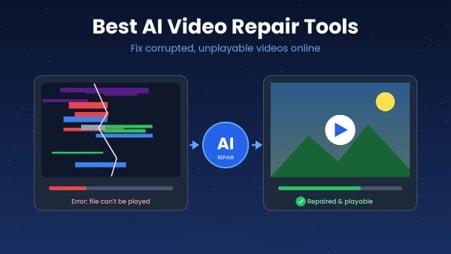
You press play on a wedding clip, a drone shot or a client project, and nothing happens. Maybe you see a black screen. Maybe the player tells you the file can’t be opened. Either way, the footage you need is stuck.
Here’s the good part: a damaged file isn’t always a lost file. AI video repair tools read what’s left of a broken video, rebuild the missing pieces and hand you back a playable copy. Most of them work in your browser, so you don’t need to install anything.
AI video repair uses trained algorithms to find and fix damage inside a video file. The tool doesn’t just try to play the file again. It looks at the parts that make a video work:
In this guide, we compare popular online video repair. You’ll see what each tool fixes, what it costs, where it falls short and which one suits your problem.
Why Do Videos Get Corrupted?
Most corruption happens when a file gets cut off while your device is writing or moving it. These are the usual causes:
- Interrupted transfers: you pull out a USB drive or SD card, or your connection drops halfway through a copy.
- Power loss while recording: the camera or phone battery dies before the file finishes saving.
- Faulty memory cards: old or low-quality SD cards develop bad sectors that damage data.
- Incomplete downloads: the file stops before the last part arrives.
- Malware: some infections change or scramble file data.
- Software crashes: an editing app freezes while it exports or saves a video.
How AI Video Repair Works
Most online video repair tools follow the same basic process:
- Upload: you add the broken MP4, MOV, AVI or other files.
- Scan: the AI checks the header, index, frames and audio track to find the damage.
- Rebuild: the tool repairs the broken parts. If you add a sample video, it uses that clip as a reference.
- Preview and save: you watch the result, then download the fixed file.
Note: No tool can promise a 100% fix. If the actual frame data was overwritten, there is nothing left to repair.
Top 3 AI Video Repair Tools
1. Stellar Online Video Repair: Best Overall
Stellar Online Video Repair runs in your browser, processes files automatically with AI and focuses on the hardest job: bringing back videos that won’t play at all.
The feature that puts Stellar ahead is sample-file repair. When a video is badly damaged, you can upload a healthy clip from the same camera. The AI uses that clip as a reference and rebuilds the broken file with better accuracy. Neither of the other two tools lists this option for its online version.
Stellar also covers a wide range of problems, from glitchy and flickering footage to blurry clips, slow playback and missing sound. According to Stellar, most users get their repaired video within 15 minutes.
Key features
- 19+ formats supported: MP4, MOV, AVI, MKV, WMV, FLV, WEBM, MTS, AVCHD, HEVC, M4V, 3GP, Sony RSV and more
- Works with almost any device: DSLRs, mirrorless cameras, GoPro, DJI drones, CCTV, Android phones and iPhones
- Sample-file repair for severely damaged videos
- Keeps original quality: resolution, frame rate and bit rate stay the same after the fix
- Large uploads: up to 5 GB per file, which fits most 4K and drone clips
- Built-in privacy: SSL-encrypted uploads, read-only processing and automatic file deletion after repair
- No installation: everything happens in your browser on Windows, Mac or mobile
| Pros | Cons |
| • Widest format support of the three tools
• Handles large files up to 5 GB online • Sample-file repair fixes severe damage • Clear privacy rules with automatic deletion • Free plan with no card required |
• Free plan covers only one video under 100 MB
• Big uploads depend on your internet speed |
Best for: anyone with a video that won’t play, especially large camera, drone, GoPro or 4K files. If you only try one AI video repair tool, start here.
2. 4DDiG Online Video Repair: Good for Quick MP4 and MOV Fixes
4DDiG comes from Tenorshare, a software company that has built data recovery tools since 2007. Its free online video repair tool runs in your browser and targets common playback problems in MP4 and MOV files.
The tool fixes videos that won’t play, show a black screen, have no sound, flicker, look blurry or drift out of sync. Tenorshare says the average repair takes about one minute, which makes it handy for short phone clips.
The catch is the limits. The online version only accepts MP4 and MOV files. You can repair and preview for free, but saving the fixed file costs $4.99. For other formats, larger files or batch repair, Tenorshare points you to its paid desktop app.
Key features
- Fixes unplayable, black screen, no-sound, flickering, blurry and out-of-sync videos
- Simple three-step process: upload, repair, preview and save
- Supports footage from phones, cameras, dashcams, drones and CCTV
- Free repair and preview before you pay
| Pros | Cons |
| • Fast for short clips
• You see the result before you pay • Clean, simple interface |
• Online tool supports only MP4 and MOV
• 300 MB file limit and 3 uploads per day • Pay to download each repaired file |
Best for: small MP4 or MOV clips from a phone when you need a quick fix and don’t mind paying per file.
3. Viddo Video AI Repair: Best for Improving Video Quality
Viddo is an all-in-one AI video and image platform. Its Video AI Repair tool works differently from Stellar and 4DDiG. Instead of fixing broken file structures, it improves how a video looks.
Upload an old home video or a low-quality clip, and Viddo can raise the resolution, correct faded colors and smooth out shaky camera movement. It supports videos up to 10 minutes long, and most jobs finish in under five minutes, according to Viddo.
Keep this in mind: if your file won’t open at all, Viddo isn’t the right first step. Fix the file with a true repair tool like Stellar, then use Viddo to polish the result.
Key features
- Resolution enhancement for sharper, clearer footage
- Color correction to restore faded or unbalanced colors
- Stabilization to reduce shaky camera movement
- Commercial use allowed on subscription plans
| Pros | Cons |
| • Strong AI tools for quality upgrades
• Good for old or low-resolution clips • Extra AI video effects on the same platform |
• Not built to fix corrupted or unplayable files
• 10-minute video limit • Credit system can be harder to budget |
Best for: creators and families who want to make old or low-quality videos look better, after the file already plays.
How to Prevent Video Corruption
Repair tools are a safety net, but a few simple habits keep you from needing them:
- Always eject USB drives and SD cards safely before you unplug them
- Keep camera and phone batteries charged before long recordings
- Replace old memory cards and format new ones inside your camera
- Back up important videos in two places, such as cloud storage and an external drive
- Run trusted antivirus software on your computer
- Let editing apps finish exporting before you close them
Final Verdict
A corrupted or unplayable video file feels like a lost memory, but the right AI video repair tool can often fix it.
Before going for any AI video repair, you need to check your requirements first. What type of issue you’re facing and how severely the video is corrupted.
Frequently Asked Questions
Can I repair a corrupted video online for free?
Yes. Stellar lets you repair one video up to 100 MB for free. 4DDiG lets you repair and preview for free, but you pay $4.99 to download the fixed file.
Is online video repair safe?
It is safe when the tool uses encrypted uploads and deletes files after repair. Stellar uses SSL encryption, read-only processing and automatic deletion. For confidential footage, you can use a desktop tool that keeps files on your own computer.
Can AI fix a video that won’t play at all?
Often, yes. If the frame data still exists, an AI video repair tool can rebuild the header and index so your player can read the file again. Adding a sample video improves the odds for severe damage.
Does video repair reduce quality?
A proper repair tool fixes the file structure without re-compressing the footage, so the quality stays the same. Stellar, for example, keeps the original resolution, frame rate and bit rate.
What is a sample video, and why does it help?
A sample video is a healthy clip recorded on the same device with the same settings as the broken one. The AI uses it as a reference to rebuild missing parts of the damaged file.