Key Takeaways
- Copilot is built directly into the Excel ribbon and understands workbook context — formulas, table structures, and data relationships — without requiring data exports to external tools.
- Users describe what they need in plain English, and Copilot generates formulas, cleans data, creates PivotTables, and builds charts automatically.
- Python integration lets any user run advanced forecasting, machine learning models, and complex visualizations (heatmaps, violin plots) without writing a single line of code.
- Agent Mode, now generally available on Windows, Mac, and web, turns Copilot into an autonomous executor that plans multi-step workflows, edits spreadsheets directly, and validates its own results.
- All data stays within the Microsoft 365 security boundary — nothing leaves the tenant, and nothing is used to train public AI models.
- Users can now switch between OpenAI and Anthropic reasoning models within Agent Mode to match the task at hand.
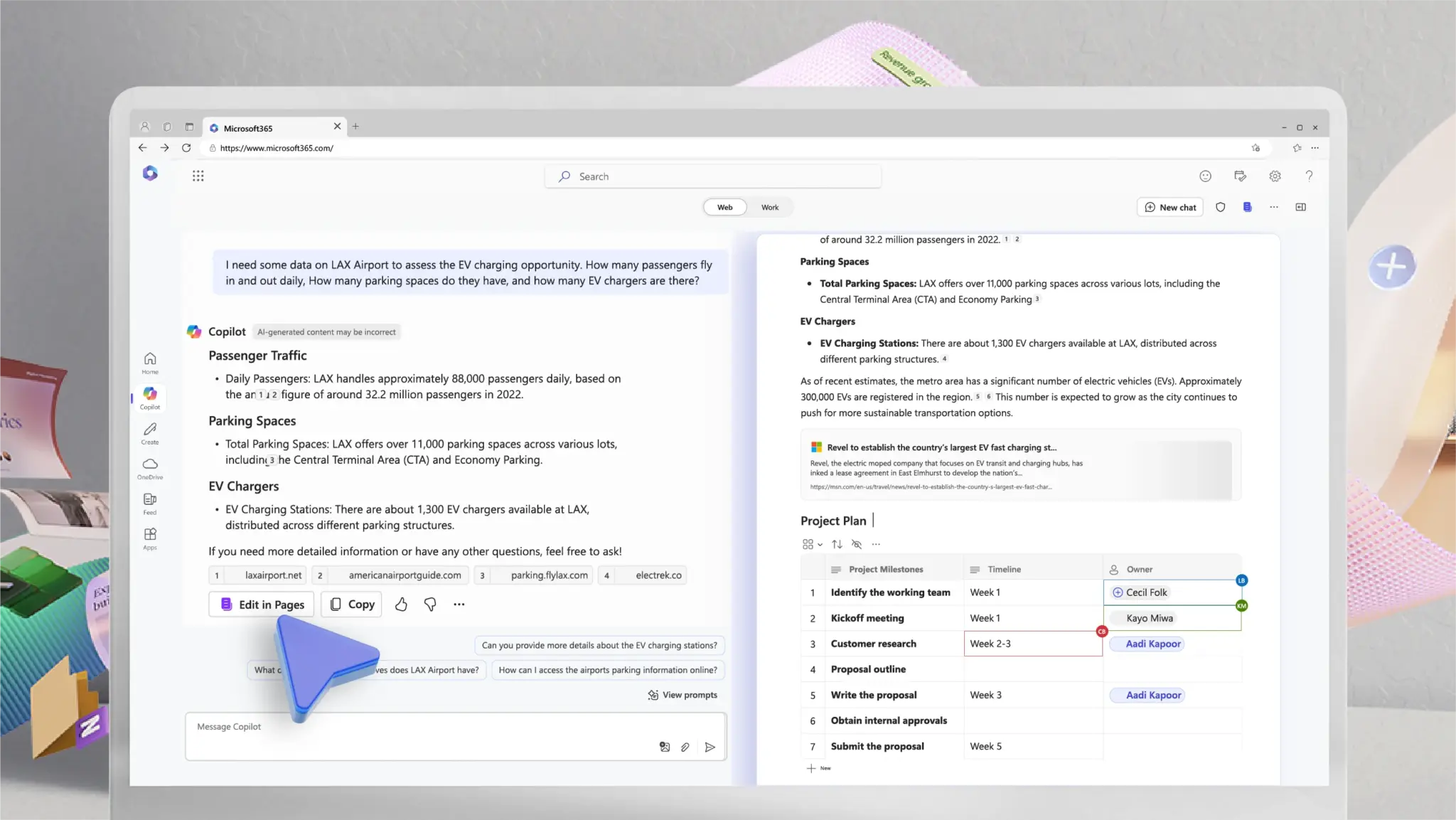
Microsoft Copilot as an AI assistant in Excel. Image credit: Microsoft
Microsoft Copilot has become the default AI assistant for Excel because it operates natively inside the application. Unlike standalone AI tools that require users to copy data out, format prompts, and paste results back, Copilot sits in the Excel ribbon, reads the full workbook context, and acts on data in place. That direct integration means it understands existing formulas, table structures, named ranges, and conditional formatting before a user types a single prompt.
The practical result is that a natural-language request like “show me monthly revenue trends and highlight months below target” produces a formatted chart, applies conditional formatting to the source data, and inserts the output — all within seconds, all without leaving the spreadsheet. For the hundreds of millions of Microsoft 365 users who already live inside Excel, Copilot removes the friction that every external AI tool introduces.
How Native Integration Sets Copilot Apart
External AI tools treat spreadsheets as flat text. They cannot read cell references, evaluate formulas, or detect table relationships. Copilot operates differently. Because it lives inside the Microsoft 365 ecosystem, it sees the full workbook state in real time. It knows that column B contains a SUMIF referencing column A. It knows that a PivotTable on Sheet 3 draws from a named table on Sheet 1. That awareness allows it to suggest edits that respect existing logic rather than breaking it.
This matters most with large, complex spreadsheets — the kind that power financial close processes, supply chain planning, and sales forecasting. A user can ask Copilot to add a new calculated column, and it will write the formula in a way that aligns with the workbook’s existing structure. No re-importing. No schema mapping. No broken references.
Natural Language Replaces Formula Memorization
One of the steepest barriers in Excel has always been formula syntax. Users who can describe exactly what they want — “calculate the year-over-year percentage change between Q1 2025 and Q1 2026” — often cannot translate that into the correct combination of functions. Copilot closes that gap. It converts plain-language requests into working formulas, including complex ones involving XLOOKUP, SUMIF, INDEX-MATCH, and nested IF statements.
Data cleaning follows the same pattern. Copilot detects inconsistencies — duplicate rows, mismatched date formats, leading whitespace, mixed text-and-number columns — and proposes corrections. Users review and accept changes with a click rather than building manual find-and-replace routines or writing VBA scripts. For organizations where analysts spend 30 to 60 percent of their time preparing data before analysis even begins, that time recovery is significant.
Python in Excel: Advanced Analysis Without the Learning Curve
Microsoft introduced Python integration inside Excel as part of Copilot’s Wave 2 update, and it changes what non-programmers can accomplish in a spreadsheet. Users describe an analysis goal in natural language — “forecast next quarter’s sales using an ARIMA model” or “cluster customers by purchase behavior” — and Copilot generates, explains, and inserts working Python code directly into the workbook.
The Python runtime executes in Microsoft’s cloud using the Anaconda distribution, which includes widely used libraries such as pandas, Matplotlib, scikit-learn, and NumPy. The code runs in a secure container with enterprise-level data protection; no local Python installation is needed. Results appear as native Excel outputs — charts, tables, and calculated values — not as disconnected script outputs.
This opens up capabilities that were previously reserved for data scientists or dedicated BI platforms: time-series forecasting, risk analysis, machine learning classification, K-Means clustering, and advanced visualizations like heatmaps, pairplots, and violin plots. A financial analyst can build a Monte Carlo simulation. A marketing manager can run customer segmentation. Neither needs to know Python syntax.
Think Deeper Mode
For particularly complex analysis requests, Copilot offers a “Think Deeper” mode that uses reasoning models to create a structured, multi-step analysis plan. It generates a dedicated worksheet, inserts all necessary Python code, and walks through the logic step by step. Users can trigger it by typing “Start with Think Deeper to do Python analysis” into the Copilot chat pane.
Agent Mode: From Advisor to Autonomous Executor
Agent Mode represents the biggest shift in how Copilot works inside Excel. Instead of answering one question at a time, Agent Mode plans a sequence of actions, executes them directly in the workbook, reviews the results, identifies errors, and iterates until the output matches the user’s intent. It became generally available on Excel for web in December 2025 and expanded to Windows and Mac in January 2026.
A single prompt like “build a loan calculator with monthly payment schedules based on amount, rate, and term — then present results in a formatted table” triggers Agent Mode to create tables, write formulas, apply formatting, generate charts, and verify outputs across multiple sheets. The user watches the reasoning process in the Copilot pane and can pause, redirect, or undo at any point.
| Copilot Mode | Purpose | Workbook Changes | Best For |
|---|---|---|---|
| Copilot Chat | Conversational analysis, insights, Q&A | Read-only — no direct edits | Data exploration, quick answers |
| Agent Mode | Multi-step task execution | Direct edits to cells, formulas, charts | Building models, reshaping data, complex reports |
| Python Analysis | Advanced statistical and ML analysis | Creates new analysis worksheets | Forecasting, clustering, advanced visualizations |
Model Choice Inside Agent Mode
A notable recent addition: Agent Mode now supports a model switcher that lets users choose between OpenAI (GPT 5.2) and Anthropic (Claude Opus 4.5) reasoning models. Different models perform differently depending on the task — structured formula generation may favor one engine, while iterative open-ended reasoning may favor another. An “Auto” mode selects the best model per task if the user prefers not to choose manually.
Data Security Inside the Microsoft 365 Boundary
Every Copilot interaction in Excel stays within the Microsoft 365 security perimeter. Data is not sent to external servers. Prompts and outputs are not used to train public AI models. For regulated industries — finance, healthcare, government — this matters as much as any feature. External AI tools require data to leave the organization’s control, introducing compliance risk with every interaction.
Python code executed through Copilot runs in a secure Microsoft Cloud container, subject to the same enterprise data protection policies that govern the rest of the Microsoft 365 tenant. Administrators can also disable web search grounding for Agent Mode sessions, ensuring that no workbook data leaks into external queries.
Who Benefits Most from Copilot in Excel
Copilot addresses two distinct user groups simultaneously. For beginners and occasional Excel users, it eliminates the need to memorize formula syntax, understand PivotTable mechanics, or learn VBA. They describe what they want, and Copilot delivers it. For experienced analysts and power users, it accelerates repetitive tasks — data cleaning, report formatting, scenario modeling — and opens up Python-powered capabilities that previously required switching to a separate tool.
Small business owners can use it to identify seasonal sales patterns and adjust inventory planning. Corporate finance teams can automate monthly close reports. Marketing analysts can segment customer data and visualize conversion funnels. The tool scales across skill levels and use cases because it operates inside the application those users already depend on.
Limitations Worth Knowing
Copilot is not without constraints. It depends on cloud connectivity — offline use is not supported. Some users have reported that third-party AI tools handle very large batch data processing faster in certain scenarios. Agent Mode, while powerful, can take several minutes on complex multi-step tasks, and its outputs should always be reviewed before acting on them — especially in financial, legal, or compliance-sensitive contexts. Microsoft’s own documentation recommends treating AI-generated outputs as drafts that require human validation.
Licensing also adds cost. Copilot requires a Microsoft 365 Copilot license on top of the base Microsoft 365 subscription. Python in Excel features require a business-tier license starting from a specific version threshold, and premium compute for faster Python execution is available as a separate add-on.
The Bottom Line
Microsoft Copilot is the dominant AI partner for Excel because it removes every layer of friction between a user’s intent and the spreadsheet’s output. Native integration gives it workbook awareness no external tool can match. Natural-language processing eliminates formula syntax as a barrier. Python integration puts advanced analytics within reach of every user. Agent Mode turns Copilot from a passive assistant into an active collaborator that plans, executes, and verifies multi-step workflows. And the entire system operates within a security boundary that keeps enterprise data where it belongs.
For anyone working inside the Microsoft 365 ecosystem — which includes over 430 million active users — Copilot is not just a convenient option. It is the path of least resistance to faster, deeper, and more secure spreadsheet work.
If you are interested in this topic, we suggest you check our articles:
- Excel World Championship: Where Spreadsheet Mastery Meets Competitive Gaming
- Leveling the Playing Field: AI Tools That Give Small Businesses the Custom Analytics Power of a Fortune 500 Company
- How Can AI Help with Administrative Tasks: 10 New Solutions
Sources: Microsoft Support, Microsoft 365 Blog, Excel Blog, Anaconda
Written by Alius Noreika